How to transfer data from a Galaxy phone with a broken screen
 Please Note: The information on this page is for Australian products only. Models, sequences, error codes or settings will vary depending on location and/or where the product had been purchased. To be redirected to your local support page please click here.
If your Galaxy phone's screen is broken and you cannot see or touch the screen to operate your device but need to transfer your data, connect your phone to an external display (monitor, TV, etc.) to utilise screen mirroring. You will also need a mouse and keyboard to operate your device so you can transfer your data.
Read on to learn how to transfer data from a phone with a broken screen to a new device.
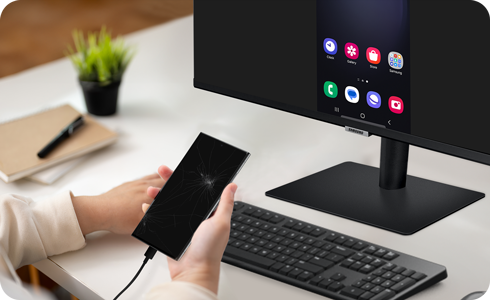
Note: To complete this process, your Galaxy smartphone's operating system must be Android 12 or higher and must also support DisplayPort.
What you will Need
Before you can transfer your data from your old, damaged phone to your new Galaxy phone, you need to check that you have all of the necessary equipment and that it is set up correctly.
Items Required:
- Your smartphone with the broken screen (Android 12 or later, Display port compatible device)
- New smartphone to move data to
- USB-C to HDMI hub adapter (with USB-A port)
- External display (HDMI enabled)
- HDMI cable
- Wired USB mouse
- Wired USB keyboard
Note:
None of the following items are included with the purchase of a Galaxy phone: USB-C to HDMI hub adapter, External display, HDMI cable, wired USB mouse, wired USB keyboard.
Setting up to Transfer Data
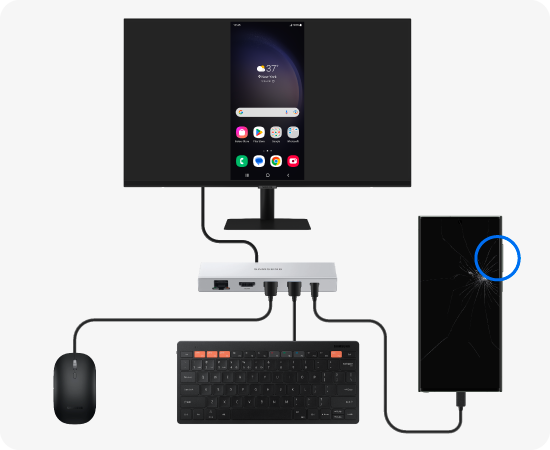
Once your phone and the external display are connected, either your phone’s screen will be mirrored on the external display or the Samsung DeX screen will appear. After unlocking or exiting DeX, you can start backing up your data with the Smart Switch.
If the Samsung DeX screen appears:


Click on the Apps icon
in the bottom left corner.
Then, Tap on Exit DeX to switch to the mirrored screen
and launch the Smart Switch app.
Note: When the DeX initial setup screen appears, press ESC on your keyboard or (Windows + Backspace) to close it.
If your phone screen is Mirrored:


Unlock it with your mouse / keyboard and launch the Smart Switch app.
You are ready to start the Transfer!
How to Transfer Data to a new phone via Smart Switch
When you want to move your data from one phone to another, the Smart Switch app makes transferring the information a quicker, easier process.
Step 1


On the New Device, open the Smart Switch app > Select Receive data.
Step 2


Next, select Galaxy/Android.
Step 3


Select the Wireless option.
Step 4


On the Old Device, select Connect to authorise the phone connection.
Step 5


On the New Device, select which data to transfer > Tap Next.
Step 6


Tap Next to complete the data transfer.
Note: If your phone won't turn on and is unresponsive, or if you have trouble getting the necessary items needed, contact or visit a Samsung Service Centre for further assistance. You may need to bring a phone to transfer the data from the broken device to your visit.

*Samsung uses AI generated images across its website and there may be some minor differences in product depictions.
Thank you for your feedback!
Please answer all questions.
Contact Info
Contact us
WhatsApp
![]()
![]()

