Downloading Smart Switch on my PC
Last Update date : Oct 13. 2026
Need help downloading Smart Switch to your PC or Mac to backup or restore content on your Galaxy Phone or tablet? Follow the below guide to learn how to successfully install Smart Switch on your PC. If you would like to learn how to backup your Galaxy Phone, check out our guide Backing up my Samsung device using Smart Switch PC for step-by-step instructions.
Click here to download the Smart Switch software for Windows or Mac OS.
Please Note: This guide is designed for Australian variant Galaxy devices, if you have an international device and require further support click here to get in touch with your Samsung subsidiary.

2
Scroll down the page to Frequently Asked Questions and click on How can I find Smart Switch app on my device?
![Click on Windows]()

3
Download the appropriate software for your Windows or Mac OS
![Downloading file]()
Download Smart Switch for Windows or Mac OS

4
Click on Download
![Click on Download]()

5
Once downloaded, click on Open file
![Installing Smart Switch software]()

6
Double click the Samsung Smart Switch Installer application
![Installing software]()

7
Allow your PC to successfully install Smart Switch. Once installed, you may be required to reboot your PC.
![Finalising installation]()

8
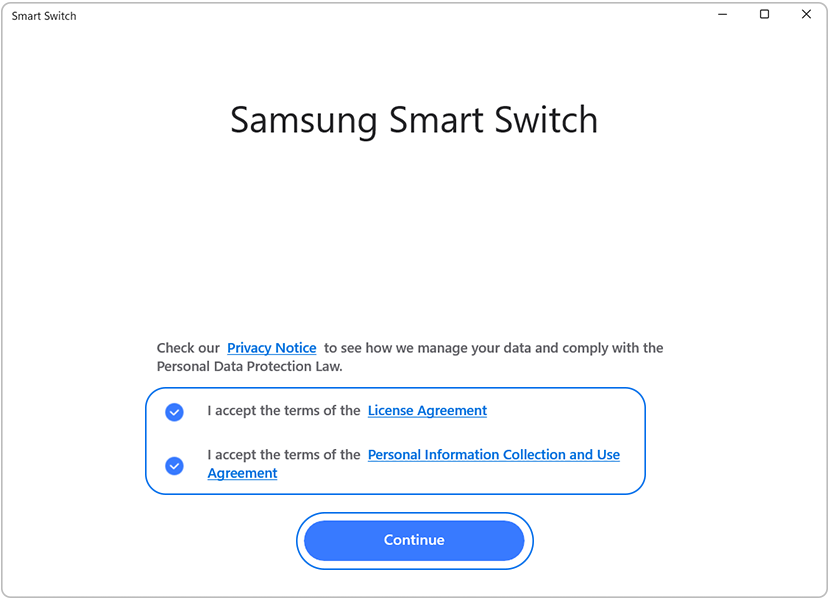
Open the  Smart Switch app from your desktop and agree to the application permissions.
Once launched you will be able to backup and restore content to your connected Galaxy Phone.
![Launch Smart Switch app]()
 Smart Switch app from your desktop and agree to the application permissions.
 Once launched you will be able to backup and restore content to your connected Galaxy Phone.

Thank you for your feedback!
Please answer all questions.
Contact Info
Contact us
For support buying a product, help with an order or technical product support
WhatsApp
![]()
![]()


It's now even easier to get in contact with Samsung Customer Care, now on WhatsApp.
Troubleshoot and book a repair
Support for your mobile devices, home appliances, TV and computing products