How to transfer data from a Galaxy phone with a broken screen
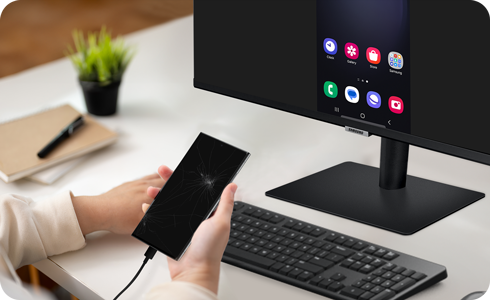
If your Samsung Galaxy phone has a broken screen, you can still transfer data using screen mirroring and external peripherals. This method works for devices running Android 12 or later with DisplayPort support.
1. What do I need to transfer data from a Galaxy phone with a broken screen?
To successfully transfer data from a Samsung Galaxy phone with a non-functional screen, you'll need the following items:
- A Samsung Galaxy phone with Android 12 or later and DisplayPort support
- A new Samsung Galaxy phone to transfer data to
- A USB-C to HDMI hub adapter with a USB-A port
- An external display (HDMI-enabled monitor or TV)
- An HDMI cable
- A wired USB mouse
- A wired USB keyboard
-Note: These accessories are not included with Galaxy phone purchases.
2. How do I set up my Galaxy phone for data transfer with a broken screen?
Follow these steps to connect your phone to an external display and transfer your data:
- Connect the monitor, mouse, and keyboard to the USB-C to HDMI hub adapter.
- Hold down the volume up and volume down buttons simultaneously on your Galaxy phone.
- Connect your phone to the HDMI hub adapter while holding the volume buttons.
- Release the volume buttons once the connection is established.
3. What should I expect after connecting my phone to the external display?
After completing the setup, one of the following will occur:
-Your phone's screen will be mirrored on the external display.
-The Samsung DeX interface will appear on the external display.
If DeX launches, unlock or exit DeX to access your phone's regular interface and proceed with the data transfer.
4. How do I transfer data using Smart Switch?
Once your phone is connected to the external display, follow these steps to transfer your data:
- Open the Smart Switch app on both your old and new Galaxy phones.
- Select the option to transfer data from your old phone.
- Follow the on-screen instructions to complete the transfer process.
-Smart Switch simplifies data transfer by moving contacts, photos, messages, and more between devices.
5. What if my phone won't turn on or is unresponsive?
If your phone is completely unresponsive or won't turn on, consider these options:
-Visit a Samsung Service Center for professional assistance.
-Bring a working phone to the service center to facilitate data transfer.
6. Supported Samsung Galaxy devices
This method is compatible with the following Samsung Galaxy devices:
-Galaxy S24, S25, S26 series
-Galaxy Z Fold and Z Flip series
-Galaxy A series (models with Android 12 or later)
7. Related Samsung support topics
Thank you for your feedback!
Please answer all questions.