How to update software using Smart Switch
You can update a Samsung Galaxy phone or tablet using Smart Switch on a Windows PC or Mac. Connect your device to a computer with Smart Switch installed, then select Update if a new software version is available.
For Galaxy users in Jordan, software availability may vary by device model, mobile network, software version, and Samsung's release schedule.

What is Samsung Smart Switch?
Smart Switch lets you connect your Galaxy device directly to a Windows PC or Mac to check for and install available software updates. It can be useful if you prefer updating through a computer or need an alternative to updating from your device settings.
Smart Switch can also help you transfer data and back up content. Available updates may include security improvements, bug fixes, performance enhancements, and new features. The exact changes depend on your device model and software version.
Before you update your Galaxy device
Before starting a software update with Smart Switch, make sure that:
- Your device has sufficient battery charge.
- You use a reliable USB data cable to connect your device to the computer.
- Your Windows PC or Mac has a stable internet connection.
- Your computer has enough available storage for the update files.
- Smart Switch is installed and updated to the latest available version.
- You have backed up important photos, contacts, messages, and files.
Note: Do not disconnect the USB cable, switch off your computer, or use your Galaxy device while the update is in progress.
Smart Switch compatibility requirements
Before updating, check that your device and computer meet these requirements:
| Device or computer | Requirement |
|---|---|
| Samsung Galaxy device | Android OS 4.3 or later |
| Windows computer | Windows 7 or later |
| Mac computer | macOS 10.9 or later |
| Mac hardware | Models released after 2013 |
Compatibility and available functions may vary by Galaxy model, computer operating system, and software version.
Download Smart Switch for Windows or Mac
To update your Galaxy device through a computer, download Smart Switch from Samsung's official website.
- Go to the Samsung Smart Switch download page.
- Select the version for your Windows PC or Mac.
- Download and install Smart Switch by following the on-screen instructions.
- Open Smart Switch after installation is complete.
How to update Galaxy software using Smart Switch
Step 1. Connect your Galaxy device to your computer
Connect your Samsung Galaxy phone or tablet to your Windows PC or Mac using a USB cable. If your computer has a different USB port type, use a compatible USB adapter.
Step 2. Open Smart Switch
Open Smart Switch on the computer and wait for it to detect your Galaxy device. Keep your device unlocked if it asks for permission to connect.
Step 3. Check whether an update is available
If a new software version is available, Smart Switch will display an Update option or prompt you to update the software.
If you do not see an update option, your device may already have the latest available software version.
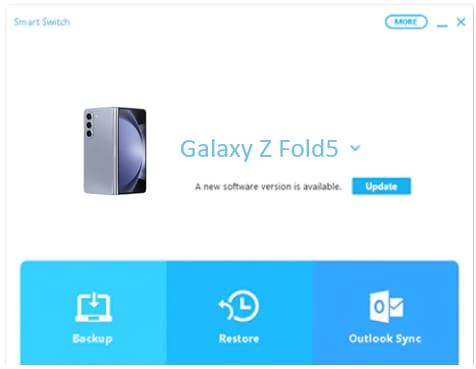
Step 4. Select Update
Select Update and follow the on-screen instructions. Smart Switch will download the necessary software files to your computer.
Step 5. Install the software update
Select OK when prompted to continue. Your Galaxy device may turn off and restart several times while the update is installed.
Note: Do not disconnect the USB cable or use your phone or tablet until Smart Switch confirms that the update is complete.
Step 6. Complete the update
When the update is finished, your Galaxy device will restart and return to the Home screen. You can then safely disconnect it from your computer.
How to check the software version on your Galaxy device
After updating, you can check the software currently installed on your device:
- Open Settings.
- Select About phone or About tablet.
- Select Software information.
- Review the Android version, One UI version, and build number.
Why is a software update not available in Smart Switch?
Smart Switch may not show an available update for several reasons:
- Your device already has the latest available software version.
- The update has not yet been released for your specific Galaxy model.
- Availability may depend on your mobile network or the device's original country or region.
- Your device may need an earlier software update before a newer version can be installed.
- Smart Switch may not be detecting the device correctly.
- There may be an issue with the USB cable, USB port, internet connection, or Smart Switch installation.
If no update is displayed, check again later or open Settings > Software update on your Galaxy device to check for an over-the-air update.
Troubleshooting Smart Switch software update issues
If you cannot start or complete a Smart Switch software update, try the following:
- Use the original Samsung USB cable where possible, or another compatible data cable.
- Connect the device directly to the computer instead of using a USB hub.
- Try another USB port on your computer.
- Make sure your computer has a stable internet connection.
- Close unnecessary programs on the computer.
- Check that your computer has enough free storage space.
- Restart both your Galaxy device and computer.
- Update or reinstall Smart Switch, then try again.
If the issue continues, contact Samsung Jordan Support or visit an authorised Samsung Service Centre.
Related Smart Switch guides
- Transfer data to your new Samsung Galaxy device with Smart Switch
- Can I transfer data between Galaxy Watch or Book devices with Smart Switch
FAQs
Can I update my Samsung Galaxy phone using Smart Switch?
Yes. Connect an eligible Galaxy phone or tablet to a Windows PC or Mac with Smart Switch installed. If an update is available, select Update and follow the on-screen instructions.
Is Smart Switch the official Samsung software for updates?
Yes. Smart Switch is Samsung software that can help you transfer data, back up content, and install available software updates on compatible Galaxy devices through a Windows PC or Mac.
Does Smart Switch update my Galaxy device automatically?
Smart Switch can detect and show an available update when you connect your Galaxy device to a computer. You need to select Update and follow the prompts to install it.
Will updating with Smart Switch delete my photos or files?
A normal software update should not delete your personal data. However, it is recommended that you back up important files, photos, contacts, and messages before installing an update.
Why does my Galaxy phone restart during a Smart Switch update?
This is normal. Your Galaxy phone or tablet may restart several times while the software update is being installed. Do not disconnect the USB cable until Smart Switch confirms that the update is complete.
Why is the latest Galaxy update not available?
Software updates are released in stages and can vary by Galaxy model, mobile network, device region, and current software version. If no update is available, your device may already be up to date or the update may not yet be available for your device.
What should I do if Smart Switch does not recognise my Galaxy device?
Unlock your Galaxy device, reconnect the USB cable, try another USB port or compatible data cable, restart both devices, and ensure that Smart Switch is updated. If the problem persists, contact Samsung Support.
For further assistance or questions, please Contact us.
Thank you for your feedback!
Please answer all questions.