How to Mirror an iPhone to a Samsung Smart TV
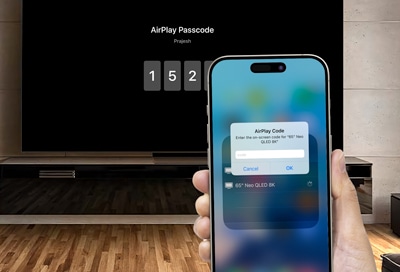
How to Mirror iOS Devices to Samsung Smart TVs
You can easily mirror your iOS device's screen to a Samsung Smart TV using AirPlay or Screen Mirroring features. This allows you to view photos, videos, and other content directly on your TV. Both devices must be connected to the same Wi-Fi network for this process to work.
1. How to Enable AirPlay on Samsung Smart TV
Before mirroring your iOS device, ensure AirPlay is enabled on your Samsung Smart TV. Follow these steps:
- Turn on your Samsung Smart TV and navigate to the Home screen.
- Select Settings (gear icon).
- Go to General > AirPlay Settings.
- Toggle AirPlay ON.
2. How to Mirror iOS Devices to Samsung Smart TV
Once AirPlay is enabled, follow these steps to mirror your iOS device:
- Ensure both your iOS device and Samsung TV are connected to the same Wi-Fi network.
- Swipe down from the top of your iOS device to open the Control Center.
- Tap Screen Mirroring or AirPlay.
- Select your Samsung TV from the list of available devices.
- Enter the passcode displayed on your TV if prompted.
3. Additional Things to Check
- Ensure your Samsung Smart TV is running the latest software version. Updates may resolve connectivity issues.
- Verify that both devices are within range of the same Wi-Fi network for stable connectivity.
- Restart both devices if you encounter difficulties during the pairing process.
4. Supported Samsung Galaxy Devices
While this guide focuses on iOS devices, Samsung Smart TVs are compatible with a wide range of devices, including Galaxy S24, Galaxy S25, Galaxy Z Fold, Galaxy Z Flip, and Galaxy A series smartphones.
5. Why the Issue Happens
- AirPlay may not function if it's disabled on your Samsung TV.
- Connectivity issues often arise from incompatible Wi-Fi networks or outdated software.
- Device-specific limitations or software bugs can also prevent mirroring.
6. Related Samsung Support Topics
Thank you for your feedback!
Please answer all questions.